Looking for the Moodle KU Login page to access your Kuwait University courses? You can sign in through the official Moodle portal at moodle.ku.edu.kw to login Kuwait University account. Kuwait University Moodle provides access to online learning, study materials, assignments, quizzes, exams, and other learning resources to learners. You will log in to KU services using KU SIS; Local User Login and Guest Login are possible based on assigned account and permissions.
This guide will help you log in to Moodle KU from beginning to end, recover your password, troubleshoot common problems with logging in, and use a cell phone or tablet to access Moodle.
What Is Moodle KU?
Moodle KU is Kuwait University’s Moodle-based e-learning system. It offers a single online platform to help students and faculty engage in and monitor academic learning activities.
At the moment, the Electronic Learning Center at Kuwait University is using Moodle as the official e-learning platform for the University. This system assists in providing course material, assignment input and submission electronically, quizzes and exams, providing communication, and tracking student progress.
Students can log in to this platform to view their courses, learning materials, and activities, to submit assignments, and, where applicable, take part in online tests or assessment activities.
1. Log in via KU SIS
The KU SIS route owns the main login flow, which is outlined in detail in Kuwait University’s official Moodle guides for students and faculty.
Step 1: Open the Moodle KU Website
Open your browser and go to:
The official E-Learning Center at Kuwait University is identified by the link moodle.ku.edu.kw to the Moodle e-learning system website.
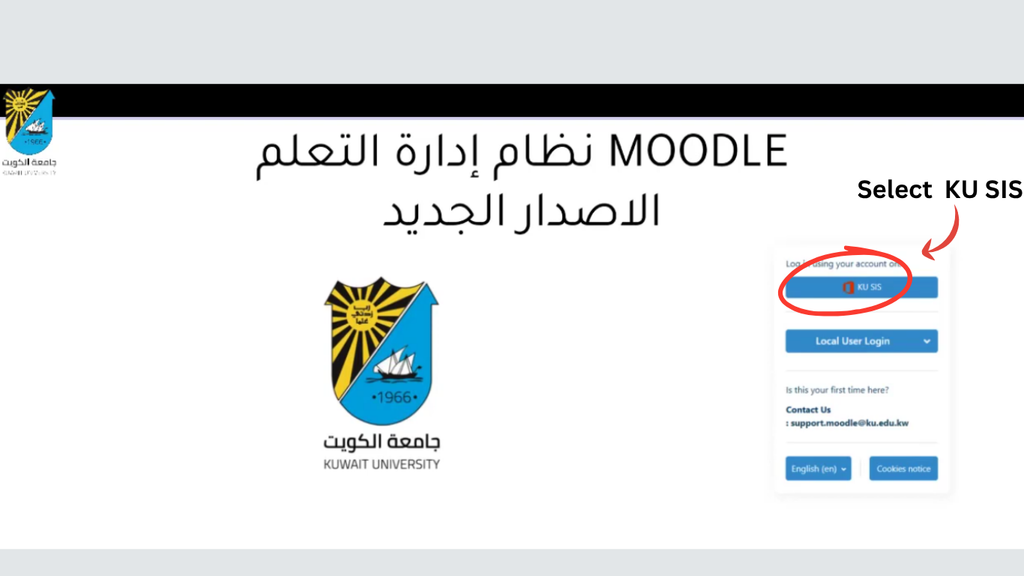
Step 2: Select “KU SIS”
After the Moodle login screen appears, click on:
KU SIS
Click it to continue.
The official student Moodle guide demonstrates the Moodle login screen, where you have two options: KU SIS or Local User Login.
Step 3: Enter Your KU Email
Once you have chosen KU SIS, you will be taken to the KU authentication page.
Enter the email address of Kuwait University.
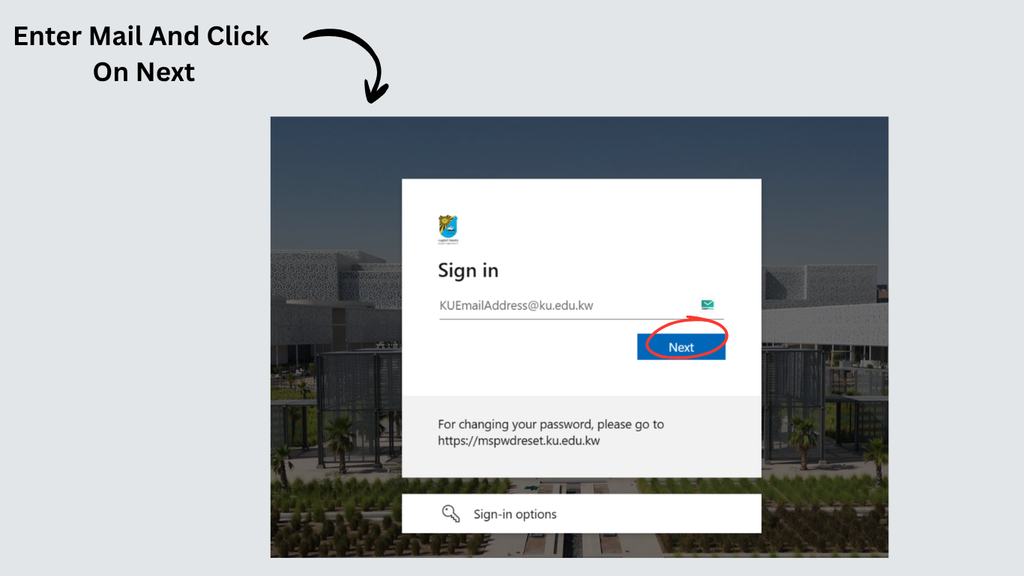
A current student guideline provided by Kuwait University states that the university email is the portal to their digital systems, wherein students admitted since 2022 can get their student email information: S[Student ID]@ku.edu.kw
Step 4: Click “Next”
Enter your KU e-mail address and click Next.
So, the authentication mechanism will lead you to the password phase.
Step 5: Enter Your Password
Type in the password given with your Kuwait University account.
Kuwait University claims that the university email password is also applicable to the other University systems, such as the Student Registration System.
Step 6: Click “Sign In”
Tap Sign in to finish signing in.
If your credentials are correct, you should be returned to Moodle.
Step 7: Open Your Moodle Dashboard
On successful login, you will see the courses and learning activities for which you have permission to access in Moodle.
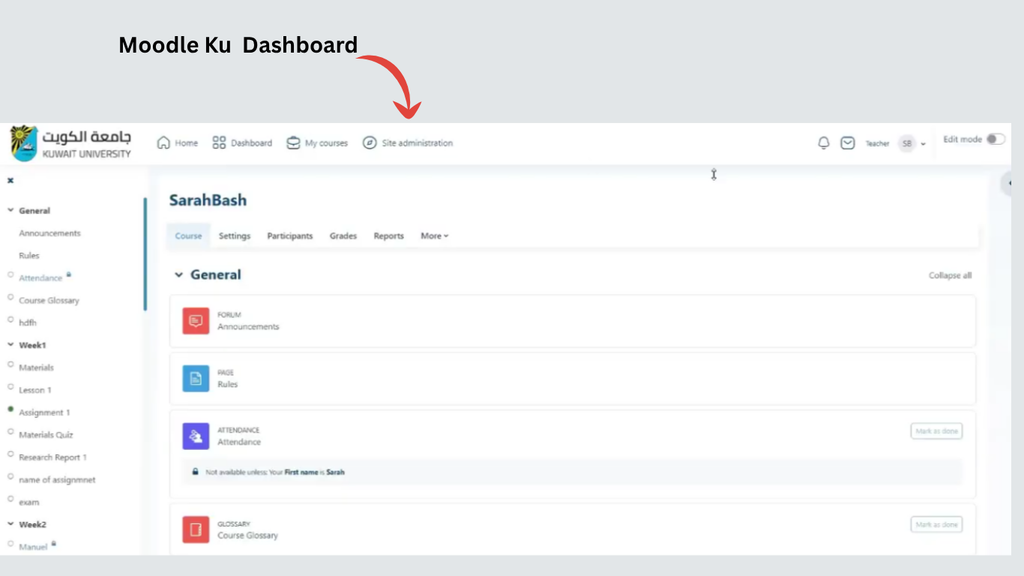
The current list provided by Kuwait University for the students states that if an instructor’s course is not shown, the course may not have been activated by the instructor.
2. Log in to Moodle KU as a Local User
There is a Local User Login option available on the Moodle KU login page as well.
A local Moodle account uses the credentials that are associated with a user account on Moodle—rather than the faculty or university’s central KU SIS account
Step 1: Open Moodle KU
Go to:
moodle.ku.edu.kw
Step 2: Click “Local User Login”
From the login page of Moodle, click on:
Local User Login
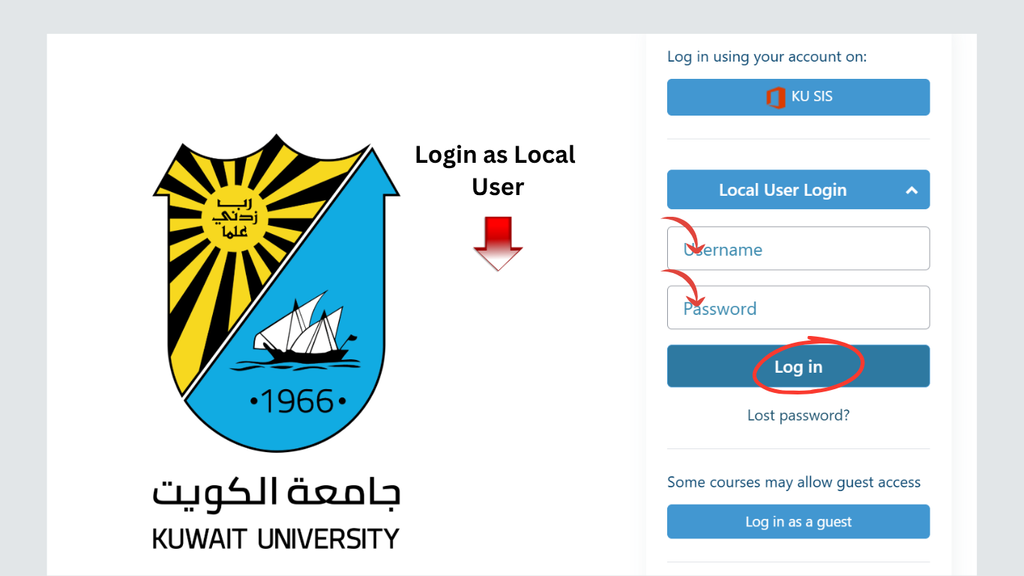
This will display the local Moodle authentication form.
Step 3: Enter Your Username
Write the username for your local Moodle account.
Step 4: Enter Your Password
Enter the password associated with the local account.
Check the spelling and capitalisation carefully if your login fails.
Step 5: Click “Log in”
Log in using your credentials to click the Log in button.
If the username and password are valid, Moodle should take you to the account or dashboard associated with that local user.
3. Log in as a Guest
Moodle KU also features a guest-access option, which can be activated.
Guest usage of Moodle is not with the same authenticated KU student account that the student would use for them.
Step 1: Open Moodle KU
Visit:
moodle.ku.edu.kw
Step 2: Open the Available Login Options
Check the page for the Moodle login options.
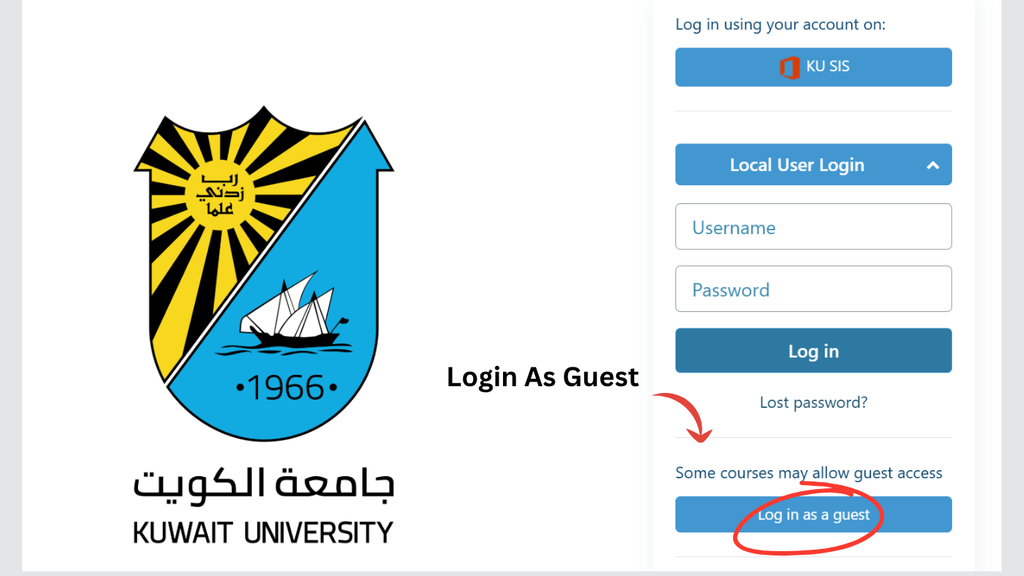
If it is available for guests to access, you’ll likely see an option to remain a guest.
Step 3: Select “Log in as a guest”
If the option appears, select:
Log in as a guest
Guest access might not require a normal KU student name and password.
Step 4: Access Guest-Enabled Content
Guest access has been accepted, and content that has been made available to guests can be browsed.
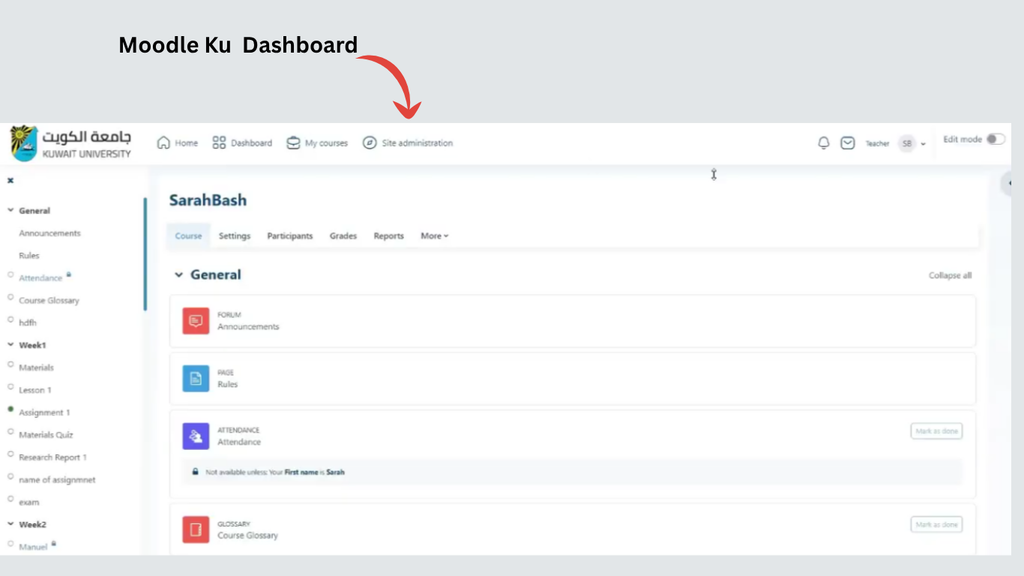
Courses, activities, and features may not be available or accessible in accordance with the settings that have been applied by Kuwait University or the individual course.
KU SIS vs Local User vs Guest Login
Choosing the correct login method can save you time.
| Feature | KU SIS | Local User | Guest |
|---|---|---|---|
| KU university credentials | Yes | Not necessarily | No |
| Personal student dashboard | Yes | Depends on account | Limited |
| Access enrolled courses | Yes | Depends on permissions | Only if guest access is enabled |
| Assignments | Based on course/account permissions | Based on account permissions | Generally limited |
| Grades | Account dependent | Account dependent | Not intended for personal grades |
| Best for KU students | Yes | Only if instructed | No |
| Requires authorised account | Yes | Yes | Guest access depends on course/system settings |
The key point is simple: if you are a Kuwait University student with a working university account, start with KU SIS.
What Can You Do After Moodle KU Login?
Moodle has more than a login portal. Gathers multiple learning activities in one place, online.
The Electronic Learning Center at Kuwait University says it offers facilities for creating course content, submitting assignments to the electronic learning systems, conducting quizzes, conducting exams, monitoring students’ progress, and communication between teachers and students through Moodle.
Access Your Courses
After the course is published, you’ll see your course in your Moodle dashboard and can access your instructor’s learning resources.
View Course Materials
Your tutors can use Moodle to give you the resources for your course and other learning resources.
Take Quizzes and Exams
Moodle is employed for online assessment activities at Kuwait University, which encompass online quizzes and online examination activities.
Track Your Learning Activities
Depending on the course configuration, Moodle can give information about activities, course progress, and other learning-related information.
Moodle KU Login Not Working? Try These Fixes
If you cannot sign in to Moodle KU, then first determine what login method you are using.
Check the Moodle Website
Please make sure that you have the official Moodle address:
moodle.ku.edu.kw
Keep your University password to yourself on an unknown website.
Check Your KU Email
In the case of using the KU SIS, confirm to enter appropriate email address of KU.
The current student “Guidance” to the University indicates that the University email is the means used to log on to Moodle and other Kuwait University systems.
Check Your Password
Ensure that you have entered the correct password and not an old password.
If the same KU account password cannot be used across the University systems, then there is a possibility of using Kuwait University’s password reset service.
How to Reset Your Kuwait University Password
Students are clearly instructed to use this service if they have forgotten their password or if they have never set a password.
Step 1: Open the KU Password Reset Service
Visit the official website of Kuwait University to reset your password.
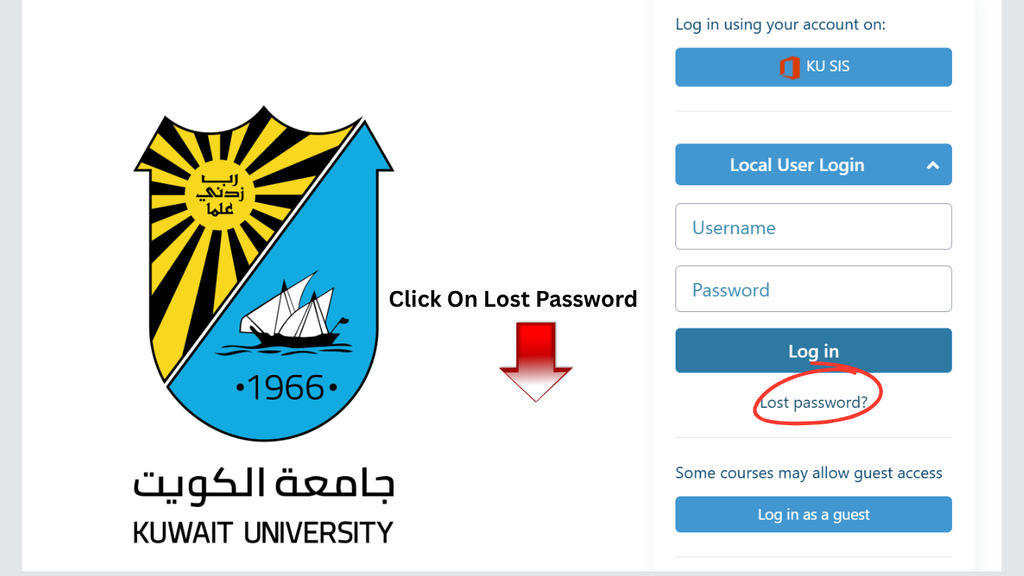
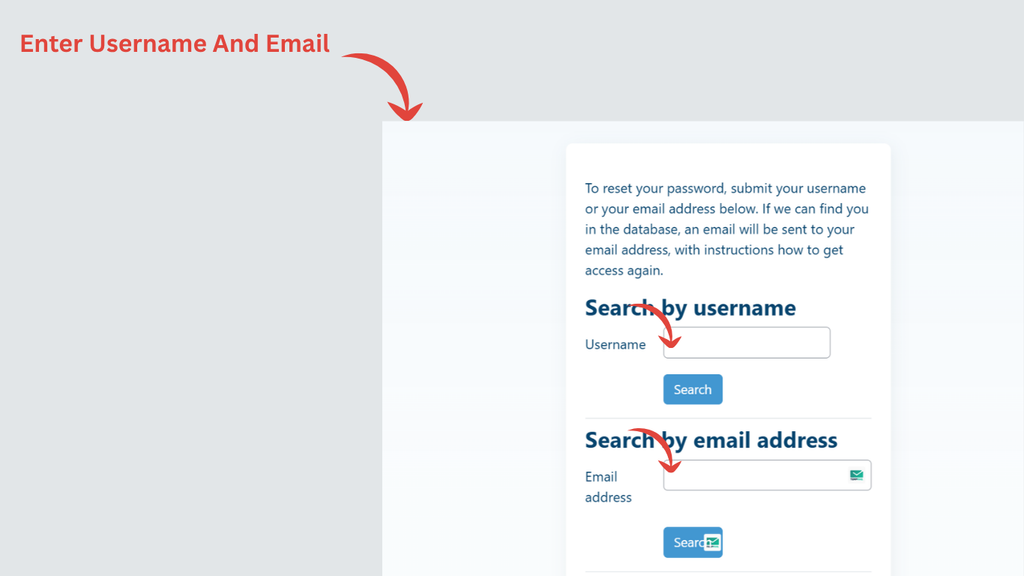
Step 2: Enter Your Required KU Information
Follow the password reset directions on the university’s system.
Step 3: Complete the Verification
Follow any identity/verification steps that are required for the system.
Step 4: Create or Reset Your Password
Use the directions to set up a working password.
Step 5: Return to Moodle KU
Once the password is reset, follow the instructions back to:
moodle.ku.edu.kw
You should then choose KU SIS and log in with your university e-mail and your updated password.
Frequently Asked Questions (FAQs)
Which is the official KU Moodle login link?
As listed on the official Moodle KU website, moodle.ku.edu.kw – this is the website of the Electronic Learning System (e-learning) of Kuwait University.
How do I log in to Moodle KU?
Please visit the official Moodle website and click on KU SIS, then enter your Kuwait University email and click Next, input the password, and sign in.
What is meant by KU SIS in Moodle?
The university authentication alternative is the one found on the Moodle login page and is called KU SIS. It enables the authorised user of Kuwait University to log in with their university credentials.
Can I log in to Moodle KU as a Local User?
Yes, there is an option “Local User Login” on the Moodle login page. Use this if you have an approved local Moodle account along with a username and password.
What should I do if my Moodle KU password does not work?
For users of a KU SIS account, double-check your KU email and password. If you have forgotten your password, then you can reset your password from mspwdreset.ku.edu.kw at Kuwait University.
Read Also: How to Collect Civil ID in Kuwait (Fastest Ways)
Final Thoughts
When you select the proper login method, it is a quick and easy login process on Moodle KU.
If you are a student with a Kuwait University ID, click on moodle.ku.edu.kw and then click on KU SIS. Log in to Moodle (University e-mail and Password). The arrangement for logging in is confirmed by the Moodle official guide at Kuwait University.
If a specific Moodle account has been given to you, perhaps you should use Local User Login. The Guest option might be an alternative if you require only access to content which has been made available to guests.